|
|
|
|

Custom Search
| |
|
| |
|
How to open a document (local/network file or web page) from MS Access
When developing Access database applications, you may want to open a document (a file on your local or network drive, or a web page) by the user or automatically opening the document in a background process coded in VBA. For example, after processing customer orders, Access opens web browser that displays sales and orders information for this month in HTML web page format. There are three ways to open a document by Access - using FollowHyperlink method, Shell function, or Navigate method. 1. Using FollowHyperlink method The FollowHyperlink Method of Access Application object opens a document or Web page specified by a hyperlink address. For a web page, it's always opened by the default web browser of your computer. If you want the web page to be opened in a web browser other than the default one, use the second method that uses Shell function. For a file on your local computer or network, it'll be opened by the default program of your PC.
Function OpenDocument(ByVal strURLLink As String) As Boolean
    On Error Goto Catch

    '' This opens the link in the default program or web browser of your computer.
    Application.FollowHyperlink (strURLLink)

    OpenDocument = True
    Exit Function

Catch:
    OpenDocument = False
    MsgBox "Error#:  " & Err.Number & vbCrLf & vbCrLf & Err.Description
End Function
To test this function, use the code below. It opens geeksengine.com website in your default web browser.
Call OpenDocument("http://www.geeksengine.com")
2. Using Shell function Shell function of MS Access runs an executable program so if we specify the EXE file of a web browser (e.g. Firefox.exe), the web page can be opened by that browser, or if the document is a file on your local computer or network, the web browser will prompt you to choose a program to open the file.
'' Open a local file or a web page in the specified web browser.

'' Optional argument intFileWindowStatus has these values:

'' vbHide 0
'' vbMaximizedFocus 3
'' vbMinimizedFocus 2
'' vbMinimizedNoFocus 6
'' vbNormalFocus 1
'' vbNormalNoFocus 4
Function OpenDocument2(ByVal strWebBrowser As String, _
                          ByVal strURLOrFile As String, _
                          Optional intFileWindowStatus As Integer = 3) As Boolean

    On Error Goto Catch

    Dim IE As Object
    Dim strBrowserEXEPath As String

    Dim strShellPath As String

    If strWebBrowser = "IE" Then
        Set IE = CreateObject("InternetExplorer.Application")
        strBrowserEXEPath = IE.FullName
        IE.Quit
        Set IE = Nothing

    ElseIf strWebBrowser = "Firefox" Then
        strBrowserEXEPath = "C:\Program Files\Mozilla Firefox\firefox.exe"
    End If

    '' Must put the file path and name within double quotes so that
    '' it's treated as a single entity.
    strShellPath = strBrowserEXEPath & " """ & Trim(strURLOrFile) & """"

    '' Open the doc
    Call Shell(strShellPath, intFileWindowStatus)

    OpenDocument2 = True

    Exit Function

Catch:
    OpenDocument2 = False
    MsgBox Err.Number & vbCrLf & vbCrLf & Err.Description
End Function
To test this function, use the code below. It opens geeksengine.com website in Firefox.
Call OpenDocument2("Firefox", "http://www.geeksengine.com")
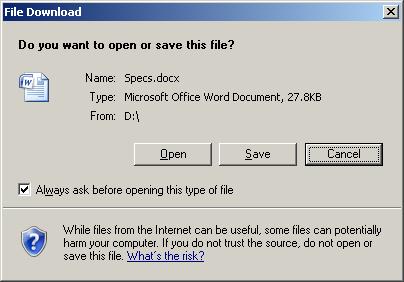
3. Using the Navigate method of an Internet Explorer instance The third method opens a document in Internet Explorer only. It creates an instance of Internet Explorer, then uses the Navigate method to open a web page or file. You can open a URL or a file by passing the appropriate path to the Navigate method. Setting the Visible property to False will hide Internet Explorer window. This can be useful when opening a document that can't be opened directly by Internet Explorer, such as opening a Microsoft Word document, because an IE window is not opened at all. Regardless of what you specify in the Visible property, if IE can't open the document, you'll be prompted to open or save the document anyway. See screenshot below.
For more about the CreateObject Method, refer to Microsoft page here. Here is the third method.
Function OpenDocument3(ByVal strLink As String) As Boolean
    On Error Goto Catch

    Dim objBrowser As Object

    Set objBrowser = CreateObject("InternetExplorer.application")
    objBrowser.Visible = True
    objBrowser.Navigate strLink

    Exit Function

Catch:
    OpenDocument3 = False
    MsgBox "Error#:  " & Err.Number & vbCrLf & vbCrLf & Err.Description
End Function
To test this function, use the code below.
'' Open a web page
OpenDocument3 ("http://www.geeksengine.com")

'' Open a local Word document
OpenDocument3 ("D:\Specs.docx")
Happy Coding! |
|
Copyright © 2024 GeeksEngine.com. All Rights Reserved. This website is hosted by HostGator. No portion may be reproduced without my written permission. Software and hardware names mentioned on this site are registered trademarks of their respective companies. Should any right be infringed, it is totally unintentional. Drop me an email and I will promptly and gladly rectify it. |
| Home | Feedback | Terms of Use | Privacy Policy |